A family slideshow is a wonderful way to bring memories to life, turning simple photos into a visual story that everyone can enjoy. Whether you’re celebrating a special occasion or just want to capture everyday moments, a slideshow adds a personal, heartfelt touch to your memories. Let’s dive into why a family slideshow could be a great idea for various occasions and how you can easily create one using SmartSHOW 3D.

When to Make a Family Slideshow
There are endless reasons to make a family slideshow. Here are a few of the best times to create one:
- Holidays and Special Occasions: Holidays like Christmas, Easter, or Thanksgiving are perfect times to gather photos of family traditions and moments. A themed slideshow set to holiday music makes a great centerpiece for these get-togethers.
- Travel Slideshow: Did your family go on a big vacation? Gather all the travel photos and create a slideshow to relive those sunny beaches, mountain hikes, or sightseeing adventures. It’s a fantastic way to preserve memories of the trip.
- Anniversary Celebrations: If you want to celebrate your parents’ anniversary, a slideshow of their journey together will tug at everyone’s heartstrings. Pair old family photos with meaningful music for extra nostalgia.
- Christmas Gift for Grandparents: Make a slideshow of the grandkids, including school milestones, sports events, and cute everyday moments. Grandparents will love having a collection of their favorite memories.
- Creative Activity with Kids: Creating a slideshow can be a fun project to do together with your children. They can help choose the pictures, pick out the music, and even arrange the slides. It’s a creative bonding activity with a tangible result everyone can enjoy.
How to Create a Slideshow in SmartSHOW 3D: A Step-by-Step Guide
Now that you’re inspired to create a family slideshow, let’s walk through how to make one using SmartSHOW 3D. This software makes it simple and fun to create professional-looking slideshows, even if you’ve never done it before.
Step 1: Download and Install SmartSHOW 3D
First, head to the smartshow-software.com website, download the software for free, and follow the on-screen instructions to install it on your computer. Once installed, open the program and you’re ready to start creating.
Step 2: Choose a Template or Start from Scratch
SmartSHOW 3D offers two ways to build your slideshow: you can either choose from their library of ready-made templates or create one from scratch.
- Using a template is perfect if you’re short on time or new to slideshow making. The templates come pre-designed with transitions, effects, and even music suggestions. All you need to do is drop your photos in.
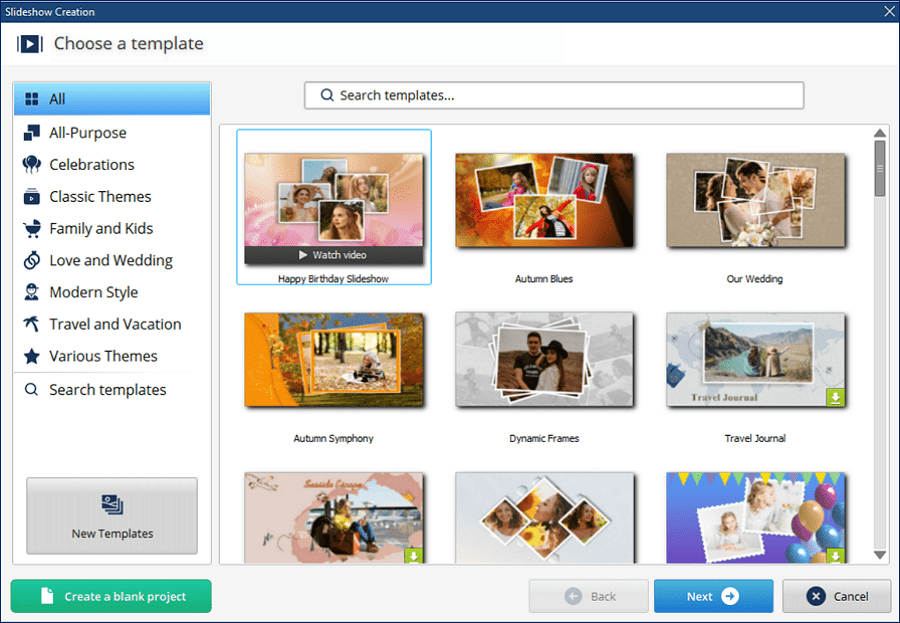
- If you prefer more control, start from scratch. This allows you to choose each transition, animation, and effect individually. It’s great for adding a personal touch or trying out your own ideas.
Step 3: Add Your Photos
Select the photos you wish to use in your project and click on the “Add to Slideshow” button to place your pictures on the timeline. Don’t worry if your photos are in different formats or sizes; SmartSHOW 3D supports all major formats and will adjust everything for you.

Step 4: Arrange Your Slides
Once your photos are uploaded, arrange them in the order you want. Simply drag them around on the timeline until everything looks right. To showcase several pictures on a slide, use animated collage templates. You’ll find them under the Titles tab.
Step 5. Add Titles and Captions
Want to make your slideshow more exciting and informative? Add titles, like “Family Vacation 2023” or “Happy 50th Anniversary,” at the start or throughout the slideshow. At this stage, you can also add text captions to some of the slides if you want to include dates, names, or little notes that explain what’s happening in each photo. There are also special effects like animated, glowing, or 3D texts.

Step 6: Add Music
Now it’s time to add music! Click on the Music tab and choose a song from your computer or open the built-in music collection where you’ll find more than 200 royalty-free music tracks classified by category, genre, tempo, duration, and mood. SmartSHOW 3D allows you to trim music tracks and even fade them in or out, giving your slideshow a smooth and polished feel. You can also record your voice comments and add sounds.
Step 7: Apply Transitions and Effects
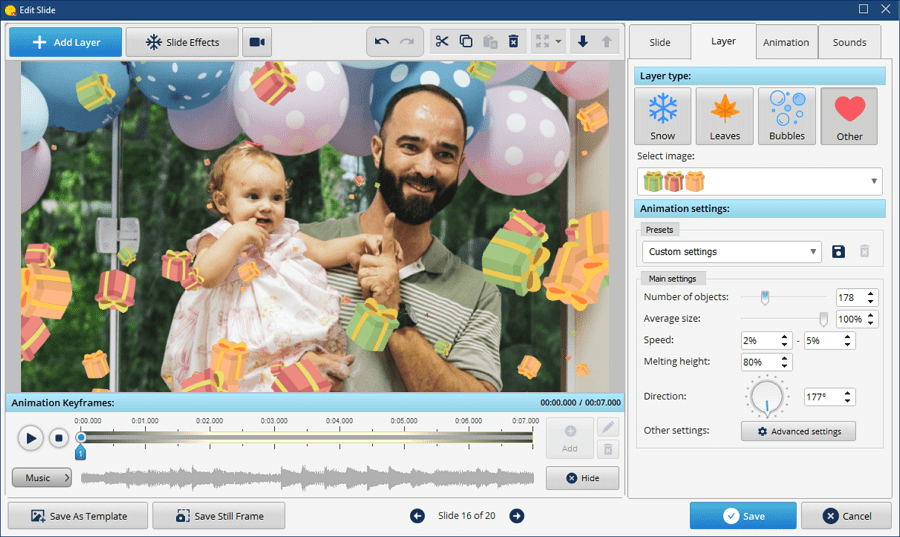
One of the coolest parts of SmartSHOW 3D is its collection of over 500 transitions and animations. You can apply classic crossfades, zoom-ins, or fancy 3D effects to your slides. It’s a good idea to keep the transitions consistent so your slideshow flows smoothly, but feel free to experiment with different styles to match the mood.
Step 8: Save and Share
Before you finish, it’s a good idea to preview your slideshow to make sure everything looks and sounds perfect. Once you’re happy with your slideshow, click the “Create Video” button. You can choose from different formats depending on how you plan to share it—like MP4 for sharing online, DVD format if you want to burn a disc, or HD for showing it on a big screen at family gatherings.
Why SmartSHOW 3D Stands Out
SmartSHOW 3D is packed with features that make it great for beginners and seasoned slideshow creators alike. Here are some of its standout features:
- Easy-to-use interface: No design experience needed! The drag-and-drop interface is super user-friendly.
- Rich collection of templates and effects: Over 800 templates, transitions, and animations let you create slideshows for various occasions in mere minutes and customize them to your liking.
- Music and voiceover support: You can add not just background music, but also record voiceovers or narrations to personalize your slideshow even more.
- 3D effects: The 3D animations bring your photos to life, making the slideshow feel like a professional production.
- Multiple output options: You can save your slideshow in various formats, making it easy to share on social media, play on TV, or burn onto a DVD.
Conclusion
A family slideshow is a beautiful way to preserve and share your favorite moments. Whether it’s for a special occasion, a thoughtful gift, or just a fun project with your kids, creating a slideshow with SmartSHOW 3D is simple and enjoyable. With its powerful features and easy interface, you’ll have a stunning slideshow to share with your loved ones in no time!